

SWISS-SDR · Platform documentation
Platform documentation
Understand and use SWISS-SDR: find, listen to, add and claim receivers. Features for listeners, operators and editors, with illustrated examples.
Read freely · Save with an account · Maintain your receivers · Review with the appropriate permissions
Version 1.0.0 · Documentation as of
1. One network, three portals
SWISS-SDR connects publicly accessible radio receivers in Switzerland, their operators and a shared editorial team. To listen, you need a suitable browser, an internet connection and permission to access the chosen receiver. You do not need your own receiving equipment.
Which portal should I choose?
SWISS-SDR covers the entire directory. OpenWebRX includes both OpenWebRX and OpenWebRX+, while KiwiSDR focuses on KiwiSDR. Web-888 is also represented in the network. The platform identifies the software or system; hardware, antennas and available frequency ranges are described in each listing.
Reading and managing
Information and this documentation stay readable on the portal you selected. Accounts, favourites, comparison and administration share a home on SWISS-SDR. A receiver detail page may open on its relevant specialist portal. Your account applies across the network.
What the portal provides
It collects descriptions, locations, check results and guides. Actual radio reception comes from the operator’s external SDR. Its capacity, permissions and rules determine whether you can listen. The illustrated platform guides explain the different receiver interfaces.
1. One network, three portals
2. Find receivers and listen live
Search and the map are public. Start with a place, callsign, receiver name or antenna, then filter by platform, canton, frequency range, status and access. A search such as 145.500 MHz checks the listed receiving ranges, not the receiver’s current tuning.
List, map and details
Switch between list and map without rebuilding your selection. Open a listing for hardware, antennas, bands, operator information, location, images and status history. Returning preserves supported search parameters. Map positions may be approximate to protect private sites; an exact location requires explicit permission.
Listen now
The listening link opens the original interface. Start its audio and choose a suitable frequency, mode and filter. A listed frequency does not promise a continuous transmission. If the receiver is restricted or full, choose an alternative or try again later.
Embedded listening on the homepage
A configured receiver can be embedded. Its external interface loads only when you press start; stop disconnects that embedded session. Enlarge the display, open a separate window or return to the initial settings. Each visitor uses a separate connection. Stopping the homepage player does not close an independently opened SDR window. Some interfaces block embedding; use the separate listening link instead.
2. Find receivers and listen live
3. Understand status, access and occupancy
The display describes the last available check. It checks service reachability and suitable status responses without opening a listening session. Monitoring must be enabled centrally and permitted for the receiver. The default base interval is five minutes; load, errors and server configuration can change actual intervals. Always check the last-check timestamp.
What the colours mean
Green means the service was reachable at its latest check. Red indicates a service assessed as unreachable. “Unknown” means there is no usable or sufficiently recent check. Maintenance is displayed separately. History shows recorded checks; a gap without measurements is not proven downtime.
Passwords and free slots
Access and occupancy are shown only when supported receivers provide appropriate responses. “No password” requires a clear, recent response. OpenWebRX does not always provide reliable general access information. “Unknown” therefore does not mean “blocked”. Green does not guarantee free listening slots, a working antenna or interference-free audio.
Popular and new receivers
Popularity depends on enough counted opens with statistics consent; it is not an editorial quality rating. Without consent your open does not contribute to that count. “New receivers” refers to first publication. Editing a description does not automatically make an existing receiver new again.
3. Understand status, access and occupancy
4. Save, compare and follow
Favourites and comparison work without an account. Listening bookmarks and location subscriptions belong to your signed-in account. Their shared entry points are on SWISS-SDR.
Favourites and comparison in your browser
Mark interesting receivers with the heart and compare up to three listings by location, equipment, frequency ranges and availability. These selections stay in your device’s browser and do not automatically sync between devices. Clearing the corresponding browser data also removes the selection.
Account listening bookmarks
Save a receiver with a label and optionally a frequency and mode. Under Account → Listening bookmarks, edit, remove and reopen your entries. They are private and linked to your account. Whether initial tuning can be passed to the receiver depends on the original interface’s capabilities.
Follow a location
Choose “Follow location” on its public profile, or manage subscriptions in your account. Newly published receivers and associated stories generate account notifications. Email is optional and can be disabled. There are no retrospective notifications or routine online/offline alerts. Ending a subscription cannot recall emails already delivered.
4. Save, compare and follow
5. Add or claim a receiver
Do you operate a public SDR in Switzerland? Choose “Add a receiver”. If you are signed out, sign in and the entry wizard opens directly afterwards. For a new account, register and confirm your email first. Sign-in and registration can be temporarily closed independently; follow the displayed guidance or use the contact form.
Create a listing
1. Check whether your receiver is already listed. 2. Enter its original public address, including the required port. Never provide the SDR’s administration password. 3. Add name, system, hardware, frequency ranges, antenna and actual location. Optional detection offers suggestions for you to verify. 4. Add your own images with descriptions and usage rights. Deliberately choose whether to allow monitoring and an exact map position. 5. Save the draft, inspect the preview and submit it for review. Saving alone does not publish a receiver.
Claim an existing listing
An unassigned public receiver page offers a claim action. Describe verifiable evidence that you control that particular receiver; a callsign alone is insufficient. In your account’s claim requests, add evidence, read questions or withdraw the request. The existing listing is assigned only after approval. You do not need to create a duplicate.
Maintain and collaborate
Under “My receivers”, edit details, schedule maintenance or pause publication. Changes to an approved listing are reviewed while its approved version remains public. Owners and administrators can make a private template copy. Location teams receive specific permissions for existing locations and receivers; team membership does not transfer ownership or grant every action.
Images and location stories
The media library supports multiple files, individual descriptions and rights, and a focal point with previews. Images need the relevant approval. Location profiles group receivers and stories explain installations, antennas and expansions. Upload only material you are entitled to publish.
5. Add or claim a receiver
6. Editing and administration
Management tools are available according to account roles. An ordinary operator cannot automatically edit other people’s receivers, users or global settings. The following workflows are for editors and administrators with the relevant permissions.
Review and approve
The overview groups submissions, claims and reports. Check sources, addresses, locations, usage rights and technical details before publication. Directory imports provide entries to review; they do not replace proof of control or approval. Data-quality and receiver-statistics views support ongoing maintenance.
Users and teams
Users / Roles provides permitted account-management actions. Location teams limit collaboration to particular objects. Bulk receiver actions show their scope before execution. Global sign-in and registration switches are independent; administrators retain access to reopen them.
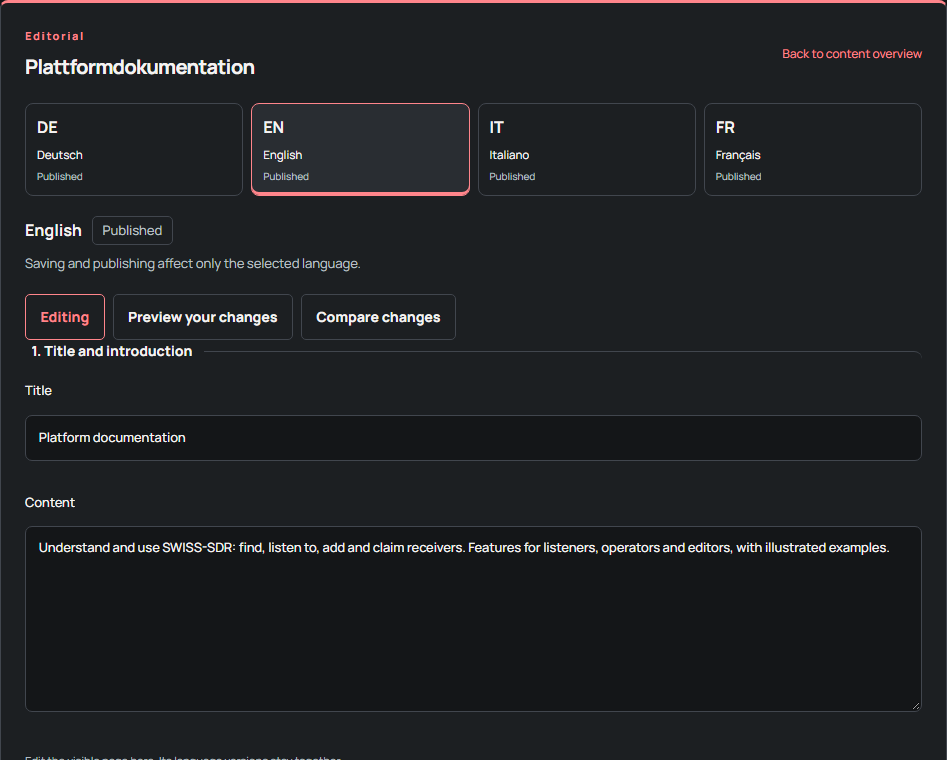
Content in DE, FR, IT and EN
Select a page from the catalogue, then its language version. Titles, introductions and blocks are grouped into a content family. Preview unsaved changes and deliberately choose saving and publication. Translation review shows changes in reference text; it does not translate automatically. Content history lets you inspect earlier versions and restore one as a draft. Scheduled publication must also match the intended version.
Homepages and live listening
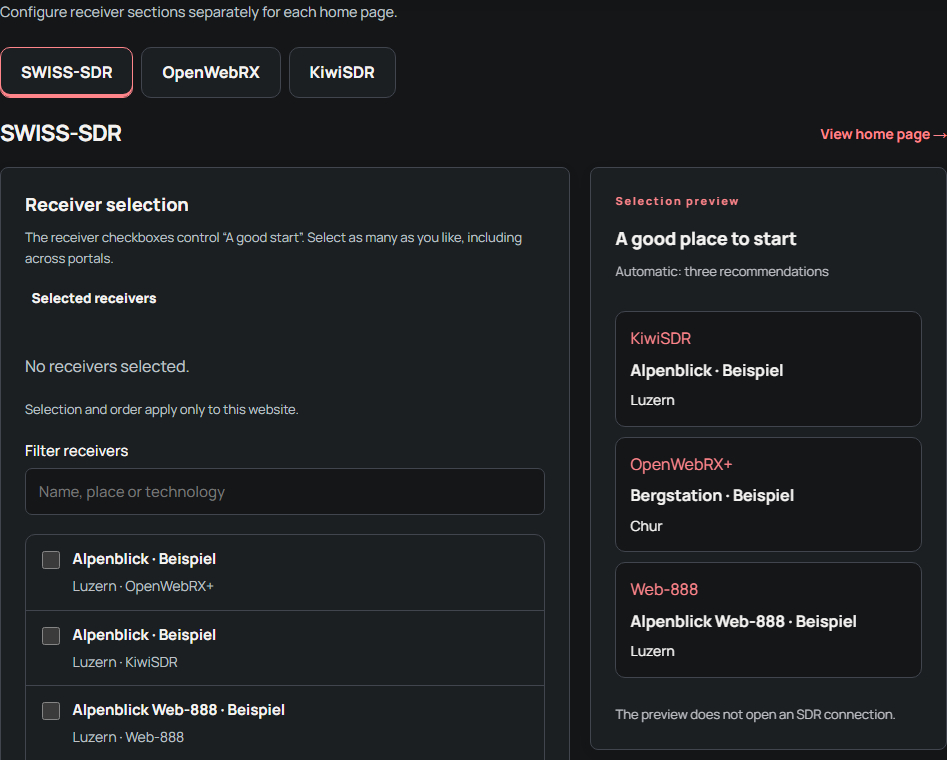
Choose automatic recommendations, a custom selection or a hidden section for each portal. Selection and ordering are independent per portal. New receivers have a separate time window and count. For embedded listening, select a suitable published HTTPS receiver and optionally set frequency, mode or a profile link. Check the preview, then save. This documentation is itself editable under Pages and content in all four languages.
6. Editing and administration
7. Embedding, settings and help
The platform can also be used beyond the receiver directory. Account permissions and your choices about external content still apply.
A location on your own website
On a public location profile, open the embedding option. Choose appearance and language, inspect the preview and copy the provided iframe code. The widget shows published receivers, existing status results and links. It does not start radio reception. Beyond 50 receivers, a link leads to the complete list; private entries are not shown.
Use the web app
“SWISS-SDR as an app” explains installation in supported browsers. It opens the same platform from your home screen. It is not an offline radio: live reception and current data need a connection. An offline screen cannot replace up-to-date receiver information.
Language, appearance and privacy
Use the header to change language and light/dark appearance. Footer cookie settings control the optional statistics offered. Opening or starting an external SDR contacts its operator directly, subject to its own cookies and rules. The privacy notice describes stored data and rights. Your account offers the provided export, security and deletion functions.
Report problems and follow changes
Use the receiver page’s correction/report action for incorrect information. The contact form handles project questions. Describe the page, device and steps you observed without sending passwords. The changelog documents new features and fixes; the date and version above identify the state described by this documentation.
7. Embedding, settings and help
Three journeys through the platform
Annotated examples from a separate test environment. Names and entries are used to explain the steps.
List a receiver
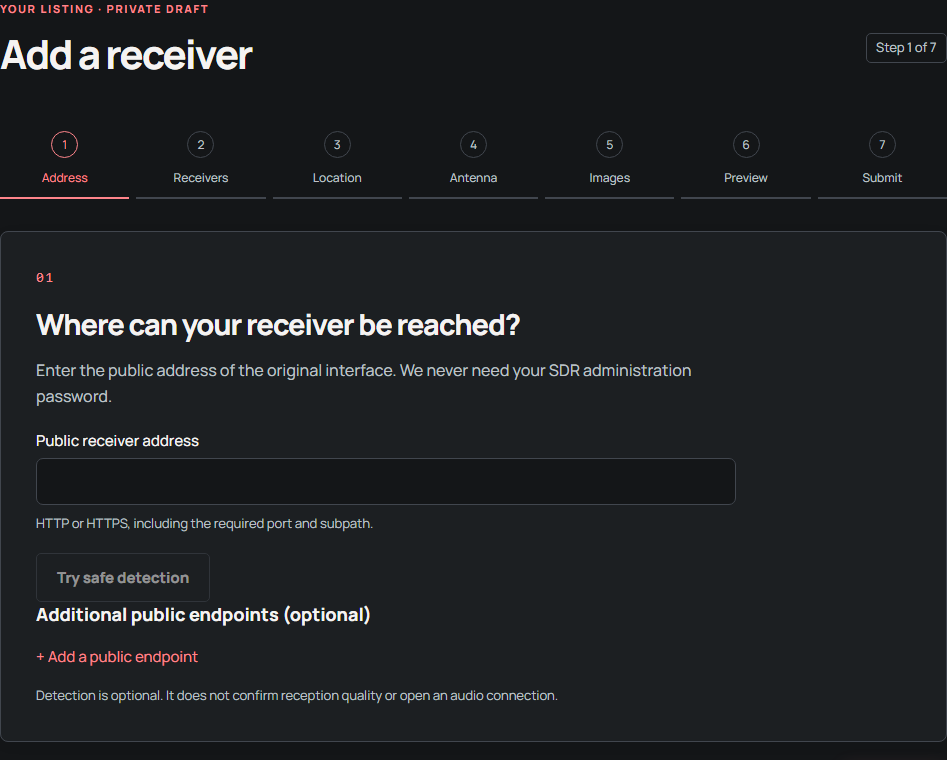
Choose receivers for the homepages
Edit content in four languages